Patient Demographics
 Updated on June 10, 2026 | 01:09 PM – CST
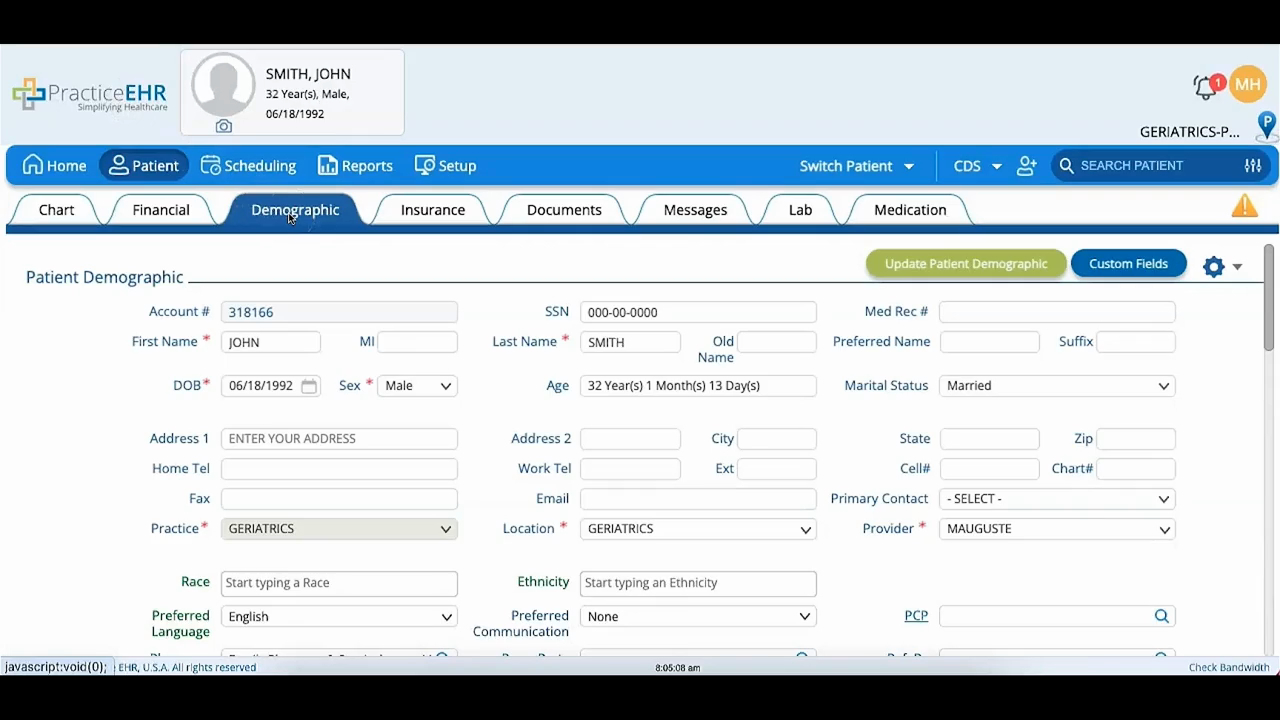
A walkthrough of the Demographic tab, split into a patient demographic section and extra info.
The video starts with the top menu bar: Update Patient Demographic to save any changes, Custom Fields to view fields built in the Setup module, and the blue gear Demographic Tools icon for common front desk functions.
It then explains the fields themselves: seven required fields marked with a red asterisk that can't be left blank, and five green-font fields that collect meaningful use data (race, ethnicity, preferred language, gender identity, and sexual orientation).
It also shows the comment box, which color-codes a patient, so a colored dot shows next to their name. Click Update Patient Demographic to save before leaving the section.
