Claim Submitting - Billing Module
 Updated on June 10, 2026 | 06:26 PM – CST
Getting a claim to the payer in PracticeEHR runs from the exam room to the Billing module, and depending on your setup, it may pass through a few different people or an outside billing company along the way.
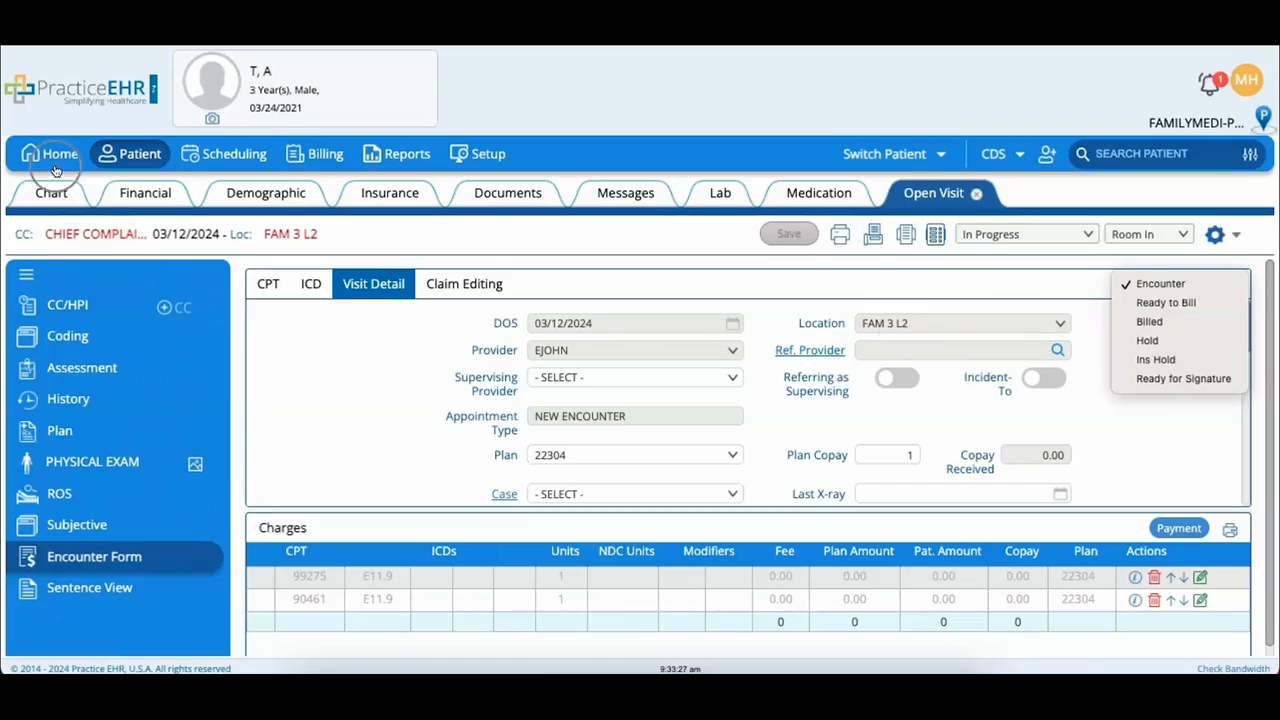
It starts with the encounter: open the visit for a checked-in patient and fill out the encounter form.
When you're ready, use the status drop-down in the top-left to set the visit to Ready to Sign Off. One thing to get right first: fix anything in Visit Details, like billing provider, location, or date of service, before you sign off, because sign-off locks those fields.
Once signed off, set the encounter form to Ready to Bill. Skip that, and the encounter just sits in the patient chart; it'll also turn up in the Not Billed Encounters bucket on the Home screen, and after forty-eight hours, it escalates to User Action Required in the Billing module.
To actually send it, go to Auto Daily Activities in the Billing module, open Electronic Visits Set for Automatic Submission, check the signed-off visit, and click Submit Select. If you leave it, the system sends it on its own at a set time each day, as long as auto submission is turned on.
